PilotPost
 By
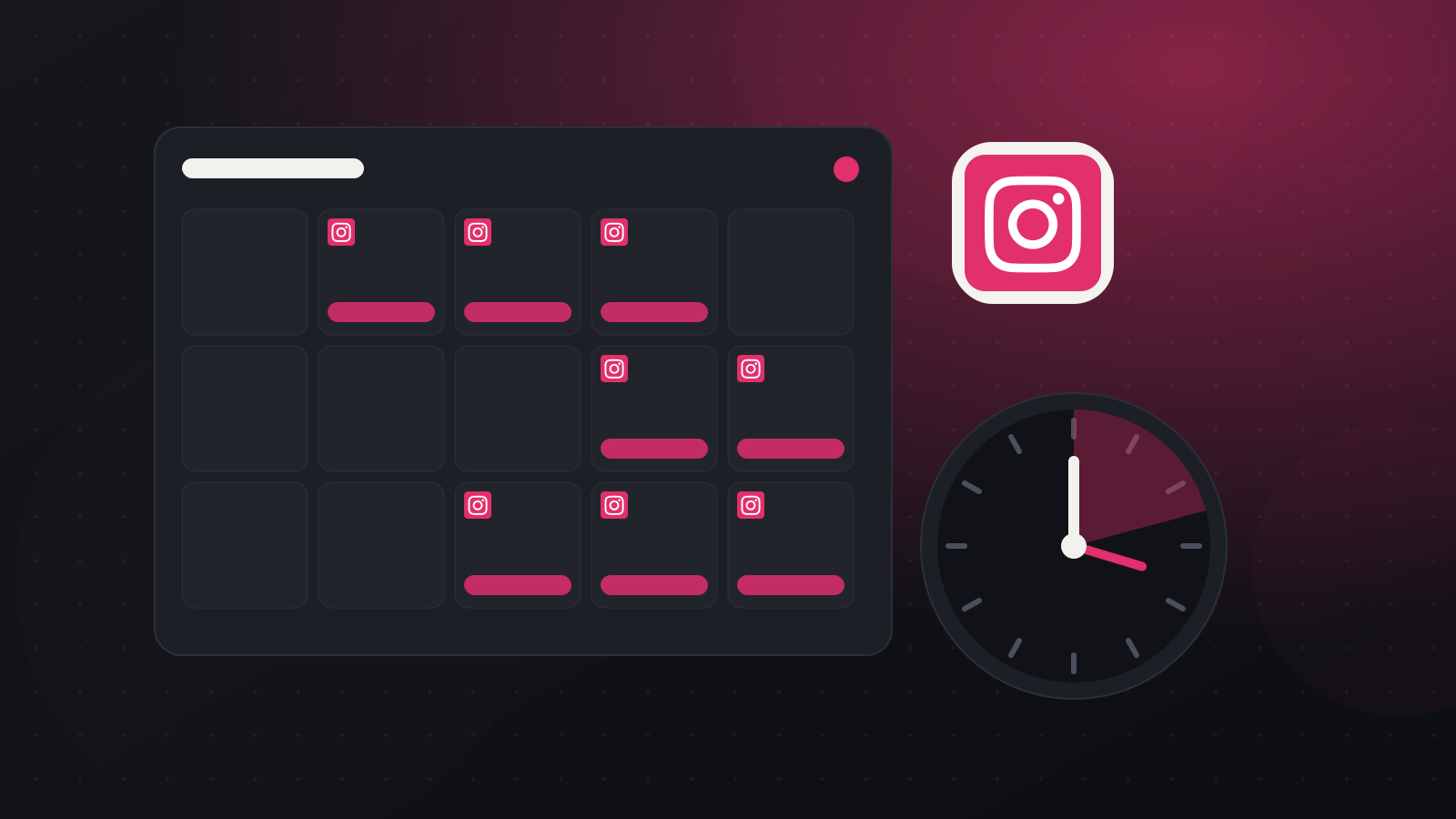
You can schedule Instagram posts for free inside the Instagram app if you have a professional (Business or Creator) account: create your post, open Advanced settings or More options, turn on Schedule this post and pick a date and time. You can also schedule from Meta Business Suite, or use a social media scheduler to plan Instagram together with your other networks.
Key takeaways
- Native scheduling in the Instagram app works for professional accounts (Business or Creator).
- Meta Business Suite lets you schedule Instagram and Facebook posts together from a computer.
- Native tools only cover Meta's apps. To schedule Instagram alongside TikTok, LinkedIn, YouTube and others, use a scheduler.
- Apps can only publish to professional Instagram accounts, so switch your account type first if needed. It is free.
Option 1: Schedule in the Instagram app
- Make sure your account is a professional account (Settings › Account type and tools).
- Tap + and create your post or Reel as normal, with your caption, tags and location.
- On the final screen, open More options or Advanced settings.
- Turn on Schedule this post (or Schedule) and choose the date and time.
- Tap Schedule. Your scheduled posts appear under Scheduled content in your profile menu, where you can edit, reschedule or delete them.
Menu names change between app versions, so look for "Schedule" on the last screen before you share.
Option 2: Schedule with Meta Business Suite
Meta Business Suite is free for Instagram professional accounts connected to a Facebook Page.
- Open Meta Business Suite on a computer and choose Create post (or Create reel).
- Tick your Instagram account, and your Facebook Page if you want to post to both.
- Add your media and caption.
- Under scheduling options, choose Schedule, pick the date and time and confirm.
Scheduled posts appear in the Planner, where you can drag them to another day.
Option 3: Schedule Instagram with your other networks
If you also post to TikTok, LinkedIn, YouTube, Threads or X, scheduling each one in its own app takes time. A social media scheduler lets you plan everything on one calendar.
In PilotPost:
- Connect your Instagram professional account on the Accounts page.
- Write your post or Reel once in the composer and tick Instagram plus any other networks.
- PilotPost checks Instagram's rules (caption length, hashtags, media type and size) while you type.
- Pick a time, or click Add to queue to drop it into your next free slot.
PilotPost then publishes automatically, even when your computer is off, and shows each post's views, likes, comments, shares and saves in Insights.
Tips for scheduling Instagram posts
- Schedule at your best times. See the best time to post on Instagram and check your own insights.
- Use the right sizes. Our Instagram post size guide covers feed posts, Reels and Stories.
- Batch a week at a time. One hour a week of planning beats posting in a rush every day.
- Reply to comments after posts go live. Early replies help conversations start.
FAQ
Can I schedule Instagram posts for free?
Yes. Professional accounts can schedule posts in the Instagram app and in Meta Business Suite at no cost.
Can I schedule Instagram Reels?
Yes. Reels can be scheduled in the Instagram app, in Meta Business Suite and in schedulers such as PilotPost.
Why can't I schedule posts on my Instagram account?
Scheduling, in the app and through other tools, is for professional accounts. Switch to a Business or Creator account in your settings; it is free.
Can I schedule Instagram posts from a computer?
Yes. Use Meta Business Suite in your browser, or a scheduler such as PilotPost, which works in any browser.